- Target Audience
- TRE Operator
- Time to read
- 10 min
Approving Project Access to a TRE
This guide describes how a TRE Operator approves Projects and Project memberships after they have been synchronised from the Submission Layer to the TRE Agent.
Prerequisites
Knowledge
- Understand how the TRE Agent synchronises with the Submission Layer. See Synchronisation
- Be familiar with the TRE Agent UI.
Technical requirements
- A deployed TRE Layer.
- A TRE Administrator user. A Keycloak administrator must create a TRE administrator account with the
dare-tre-adminrole. See Add Keycloak User. - A connected TRE Agent. See Connect a TRE Agent to the Submission Layer.
Approve Projects and Memberships
Sign in
Sign in to the TRE Agent UI using a TRE administrator account.
Locate the Project
Once the TRE Agent has synchronised with the Submission Layer, Projects assigned to the TRE appear in the TRE Agent UI. Select the Project you want to review.
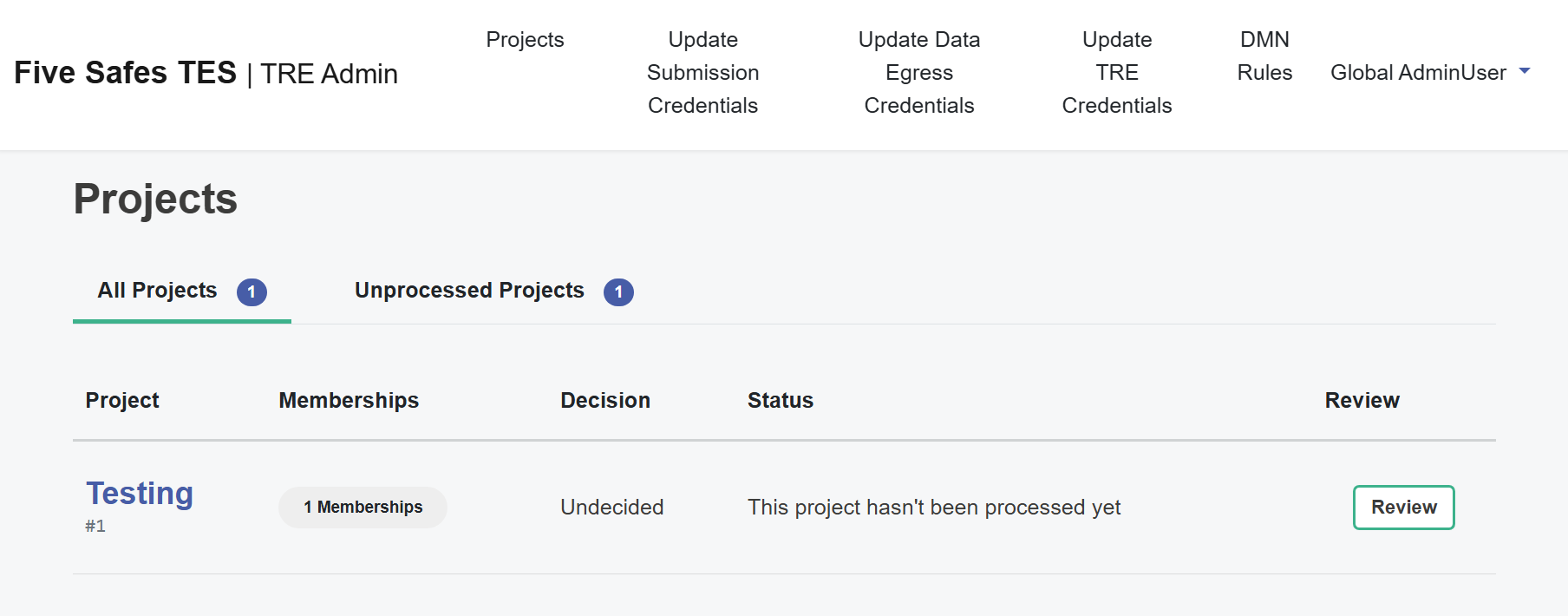
The TRE Agent synchronises Projects from the Submission Layer at a regular interval.
To change the synchronisation interval, a TRE operator can update the syncSchedule setting in the TRE Agent configuration.
Approve the Project
Navigate to the Project Approval section and choose whether to approve or reject the Project.
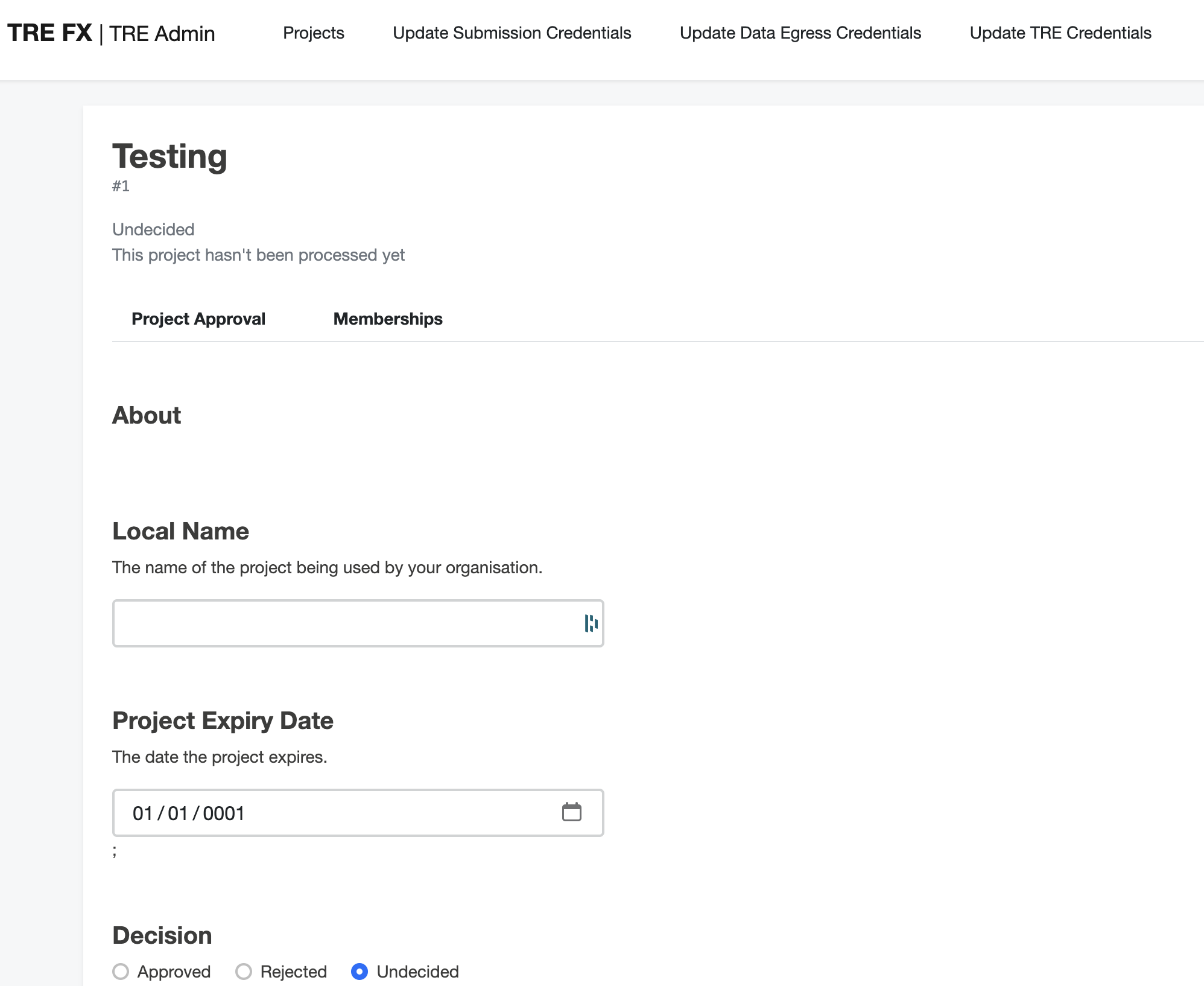
A rejected Project cannot be changed back to Undecided or Approved.
Approve Project Memberships
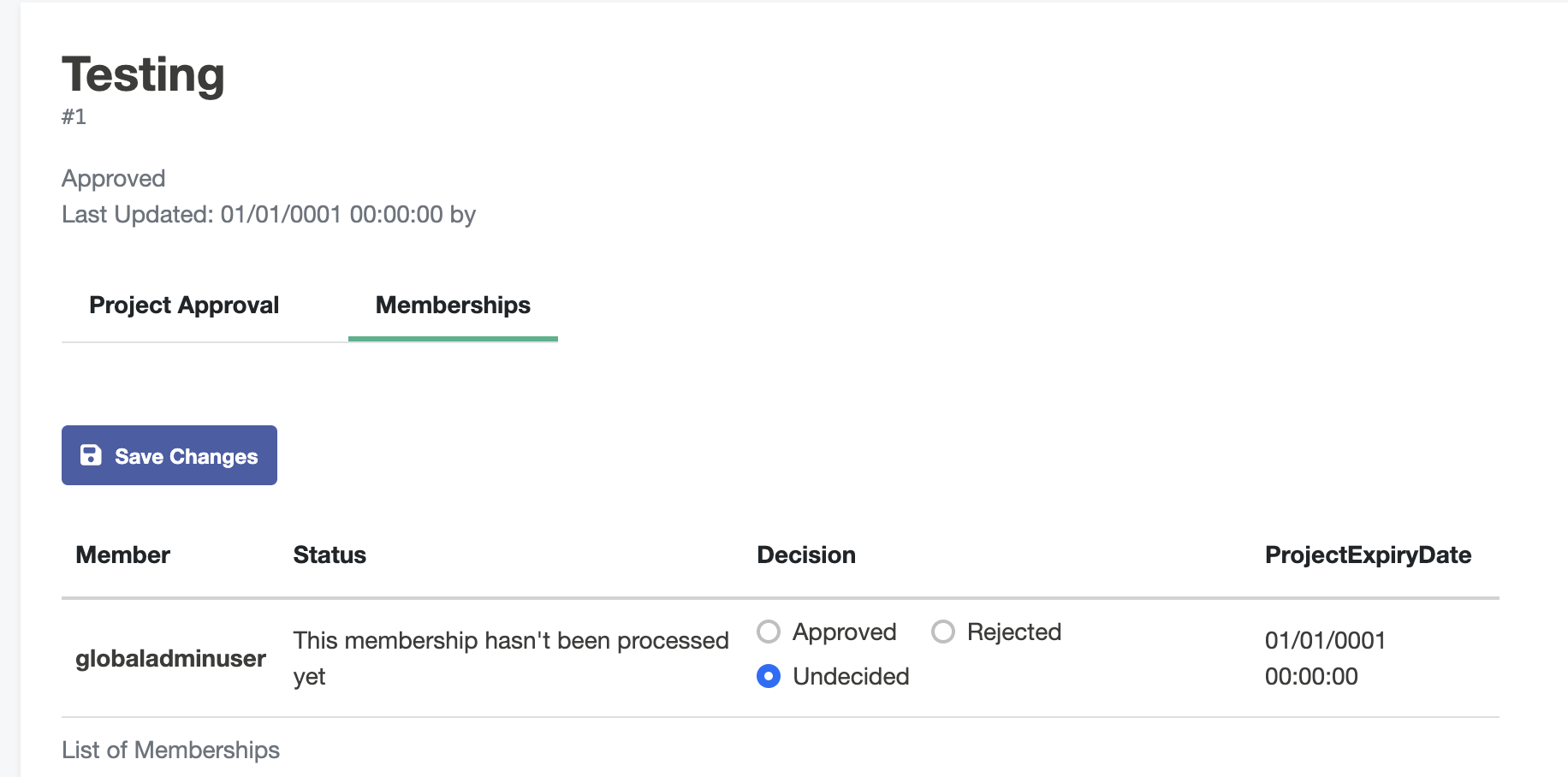
Open the Memberships section.
Review each Project member and decide whether they are allowed to submit TES tasks to the Project.
Once you have finished reviewing all memberships, select Save Changes.
What’s next?
After approving the Project and its memberships, you can continue with:
- Controlling TRE data access.
- Review and approve outputs.