Connect a TRE Agent to the Submission Layer
To connect a TRE Agent to the Submission Layer, some setup is required from the Submission Layer and the TRE Agent side:
Submission Layer setup:
Create a user to access the Submission Layer from TRE
- Follow this guide to create a user with the
dare-tre-adminrole. Use the username and password of this user for steps below
Create a TRE
- From the Submission Layer navigate to the TRE -> Create new TRE.
- Set the name of the TRE you want to connect to as
Name. - Set the username of the user created in step 1 above as
Admin Username. - Click
Submit
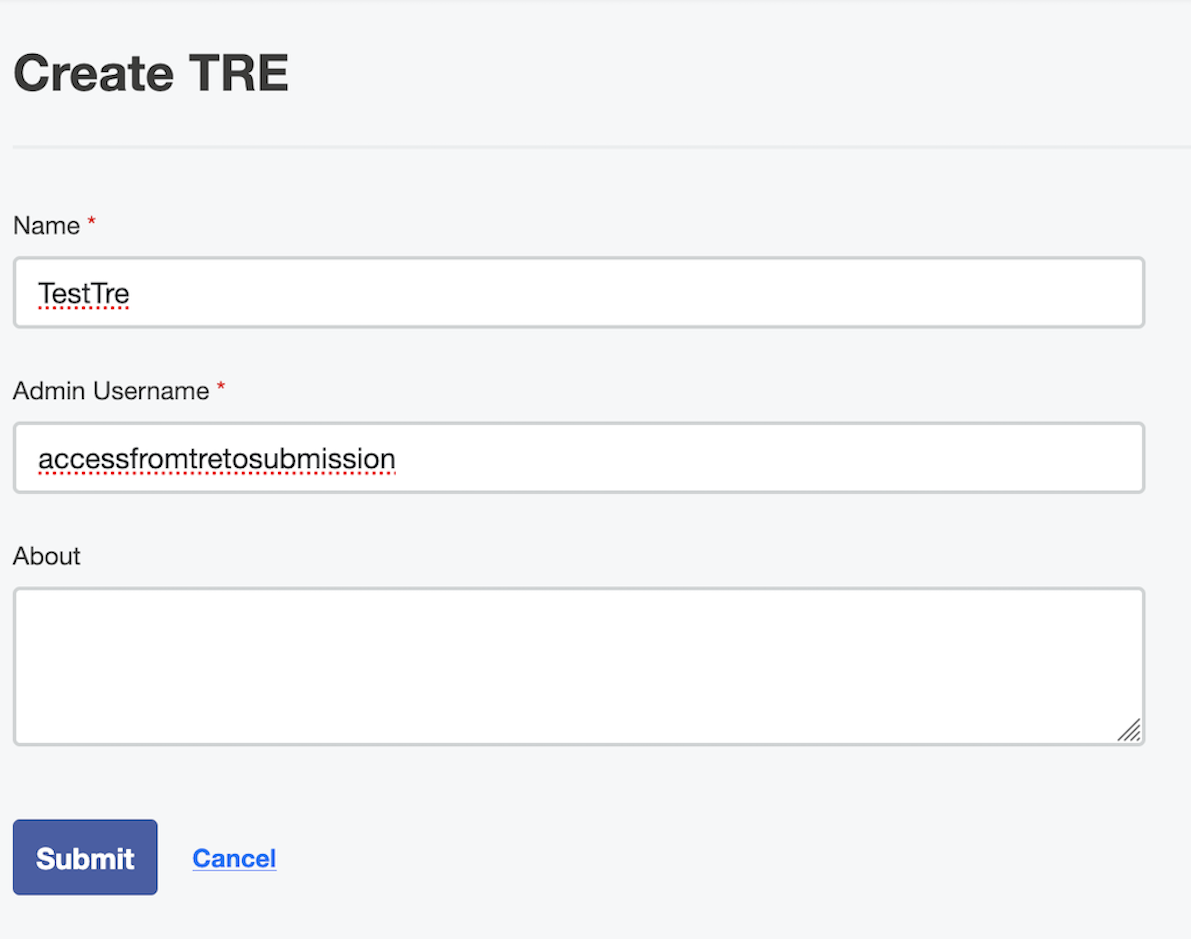
If you are using the DemoStack, the user in step 2 already exists and its username is:
accessfromtretosubmission Create a Project with the TRE
- Create a Project, add TREs and users to the Project following this guide.
TRE Agent setup
Prerequisites:
Enter Submission Credentials
The TRE Agent UI will prompt you to provide the submission credentials in order to authenticate against the Submission Layer API.
These are the TRE Agent user credentials set in step 2 of the Submission Layer setup above.
If you are using the DemoStack, the credentials are:
Username: accessfromtretosubmission
Password: password123
Wait for the TRE Agent to sync with the Submission Layer
After these setup steps, the TRE Agent should try to reach out and connect (sync) with the Submission Layer where the project in step 4 above is created.
The sync process will happen every 10 minutes by default.
To adjust how long between each sync change the syncSchedule setting.