5S-TES DemoStack Quickstart
This is not intended to be a production deployment. To run these applications in a deployed environment, see their respective deployment documentation
DemoStack is a demonstration instance of the complete Five Safes TES Weave, and it will be used in this Quickstart guide.
The purpose of this guide is to allow you to run all the components of Five Safes TES in a single install locally, and guide you through sending your first “Hello World” submission to the Five Safes TES. This then will help you to explore how this weave can be useful for your use case, or as part of a development pathway.
The quickstart is expected to take approximately 30 minutes to complete.
Prerequisites
-
Docker installed and running on your machine. Instructions can be found here.
-
The Docker Compose files of Five Safes TES Weave need to be downloaded or cloned from the GitHub repository. If you have Git installed, you can do clone the repository by running the following command:
git clone https://github.com/SwanseaUniversityMedical/5S-TES-deployment.git -
Before running the quickstart, we recommend reading the Overview and Core Components pages to gain a basic understanding of the stack.
Sending Hello World submission
To complete a submission in production, many parties (e.g., researchers, TREs Administrators, Submission Layer Administrators, Egress Layer Administrators) need to be involved in the process and play their roles in the submission lifecycle in respective apps.
For example, TREs Administrators will do step 2 below to approve the project access to the TRE, researchers would do steps 4 and 6 on the Submission Layer, and Egress Administrators will do step 5 to approve the submission results.
However, in the DemoStack, these roles are played by a single user (you) in all the apps.
Start the starter.sh automation scripts
The DemoStack includes a starter.sh automation script that automates the initial setup process. This script will:
- Start all Docker Compose services in
SeedDemoData = trueto seed the demo data and instances. - Install and configure the MinIO client (mc).
- Fetch MinIO access keys for Funnel, which is chosen as the TES executor for the DemoStack quickstart.
- Installs and setup the Funnel for executing the TES tasks.
- Generate the Funnel configuration file.
- Start the Funnel TES server.
Follow these steps to run the starter.sh automation script:
- Within the 5S-TES-deployment root directory, change to the
DemoStackdirectory:cd DemoStack - Give permission to execute the
starter.shautomation script:chmod +x scripts/starter.shThe command above only requires if you run this for the first time.
- Run the
starter.shautomation script:./scripts/starter.sh
This will start the stack with the seeding of some demo data and instances.
Wait until all the services are up and running and the starter.sh script
shows the following message in the terminal. The status of the services can be checked by running docker stats in a new terminal window.
...
Creating funnel-config.yml...
Starting Funnel...
server               Server listening
httpPort             8000
rpcAddress           :9090
time                 2026-02-25T12:47:16Z
Once the keycloak service has started, the configuration files for three realms DARE-Control, DARE-TRE and Data-Egress will be imported and applied automatically.
These realms control access to the Submission Layer, TRE Agent, and Egress Layer respectively. In the DemoStack configuration, the admin user globaladminuser will be created in each realm.
Username: globaladminuser
Password: password123
Approve the Project access to the TRE
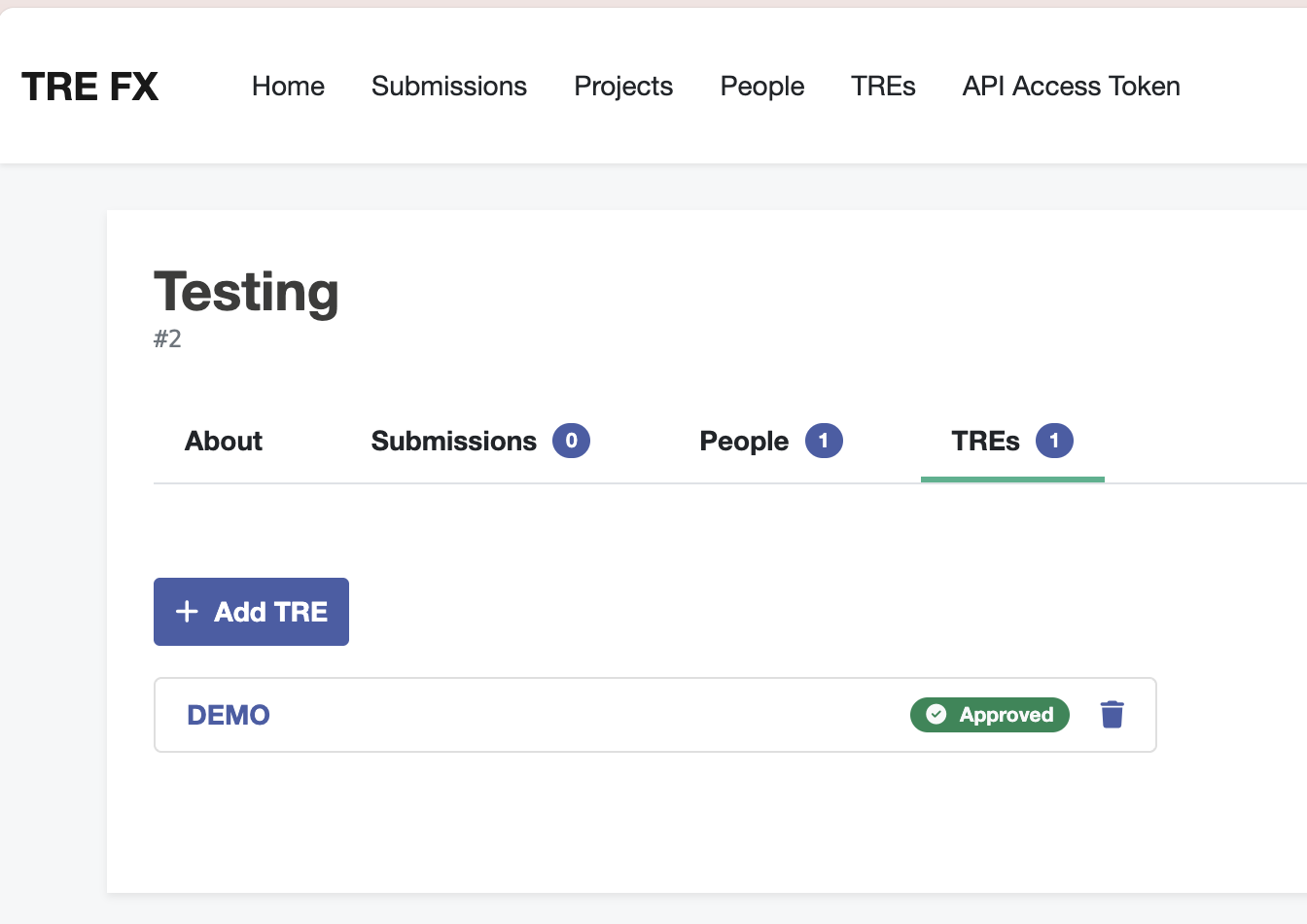
Since the “SeedDemoData” is true for the first run, a project named Testing and a TRE named DEMO are automatically seeded in the Submission layer. Once the Docker Compose stack has started successfully, if the seeded project and TRE do not appear yet, please allow approximately 2 minutes for the TRE Agent to complete the migration of the demo projects and sync.
Follow this guide to approve the project access to the TRE.
To make sure that the project has been approved and Submission Layer is in sync with TRE Agent, log into the Submission Layer at localhost:7220, using the Keycloak credentials above. Select the project, and navigate to the TREs section. You should see Approved status for the TRE.
Prepare to send the first submission
To send the first submission, you need to disable simulation mode in DemoStack by doing the following:
- Set
SeedDemoDatatofalse - Set
UseTESKtotrue
This can be done manually by editing the .env file and restarting the Docker Compose services or by running the submission-ready.sh automation script.
Follow these steps to run the submission-ready.sh automation script:
- Open a new terminal window and navigate to the DemoStack directory:
cd DemoStack- Give permission to execute the
submission-ready.shautomation script:
chmod +x scripts/submission-ready.shThe command above only requires if you run this for the first time.
- Run the
submission-ready.shautomation script:
./scripts/submission-ready.shThis script will automatically do the required configuration changes, make the stack ready for submission and restart the Docker Compose services.
Tips: You can always start or restart the Docker Compose services (e.g.,after editing the .env file) by running the command ./scripts/submission-ready.sh.
This will keep the stack in the state that is ready for you to send the submission.
Send a Hello World submission
The Hello World TES task is a simple submission that is used to demo the DemoStack.
-
Login to the Submission Layer at localhost:7220 using the Keycloak credentials above (if you didn’t already)
-
Go to the
Projectspage. -
From the list of projects select the
Testingproject. -
Once in the
Testingproject go toSubmissions->Create Submission->TES Wizard. -
On the
TES Wizardpage selectSubmission Mode -> Raw JSON -
Enter the following payload, then click
Submit TES Task:
{
  "state": 0,
  "name": "Hello World",
  "inputs": [],
  "outputs": [
    {
      "name": "Stdout",
      "description": "Stdout results",
      "url": "s3://",
      "path": "/outputs",
      "type": "DIRECTORY"
    }
  ],
  "executors": [
    {
      "image": "ubuntu",
      "command": ["echo", "Hello World"],
      "workdir": "/outputs",
      "stdout": "/outputs/stdout"
    }
  ],
  "volumes": null,
  "tags": {
    "project": "Testing",
    "tres": "DEMO"
  },
  "logs": null,
  "creation_time": null
}
This submits a simple task that:
- launches an
ubuntucontainer and executesecho Hello World(“executors” section) - captures the container output in a file and saves it to the
/outputsfolder in MinIO (“outputs” section)
More information around submitting different TES Tasks can be found in the TES Wizard
guide.
Tracking and approving the submission results
You will be redirected to the list of Submissions, click onto the submission you just sent.
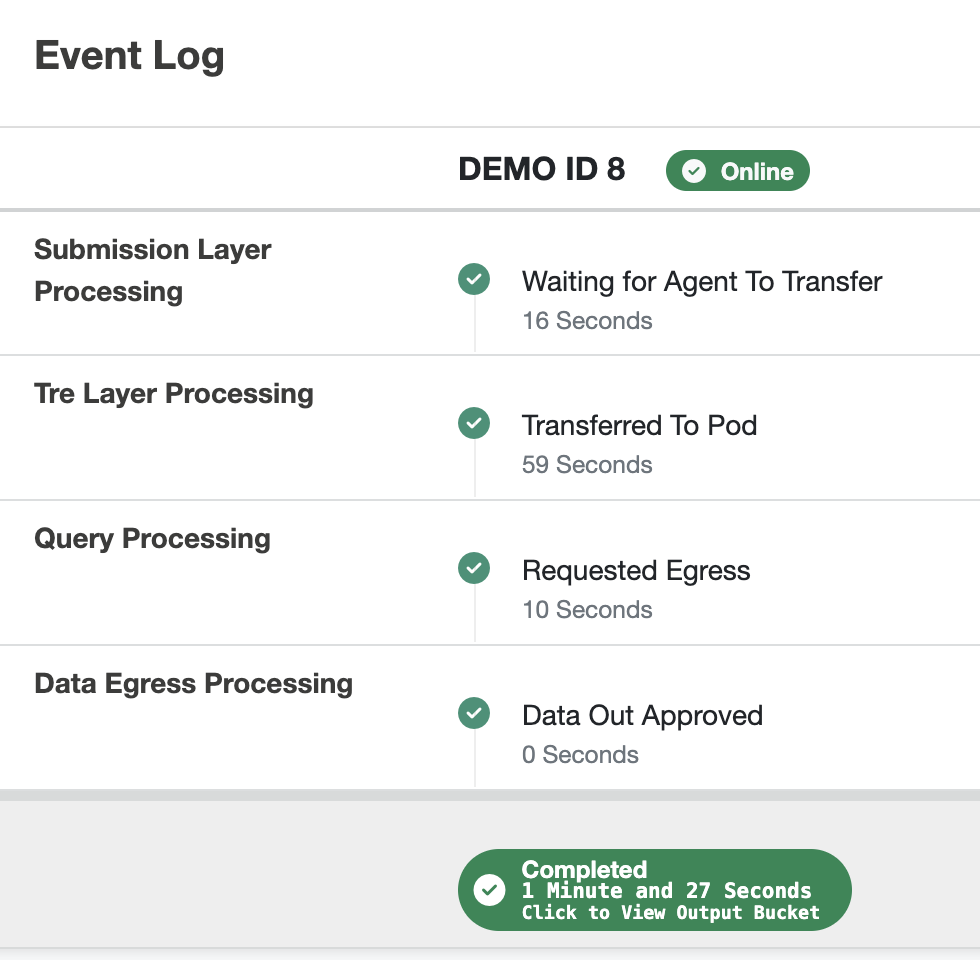
You should be able to see the status of the submission. Once it has been processed, the status will be set to: Requested Egress.
This means that the results are waiting for egress approval. Follow this guide to approve the submission results.
View the submission results
Once the Egress request has been approved, you can view the results in the Submission Layer’s output bucket.
The final successful process should be like this:
Stop the containers
To stop the containers, run the following command:
docker compose downTo start the containers again and submit submissions in the future:
- Make sure you are in the
DemoStackdirectory. - Run the following command to run the stack not in the simulation mode:
./scripts/submission-ready.sh - Then start Funnel by running the following command:
./scripts/funnel.sh
If there are any issues with the automated setup script for Funnel, or if you prefer to set up Funnel manually, follow the instructions here.
Next steps
Now you have sent your first submission, you can try to send a different type of submission, such as a SQL query or a custom image, with a different project and TRE using this guide or the TES Wizard.
If you encounter any issues, please raise an issue here.