Submit a TES task using the TES Wizard
To submit a TES task using the TES Wizard:
- Login to the Submission Layer
- Go to the
Projectspage. - From the list of projects select the
Projectyou want to submit to. - Once in the
Projectpage go toSubmissions tab->Create Submission->TES Wizard.
The TES Wizard has three different modes:
Simple SQL Query
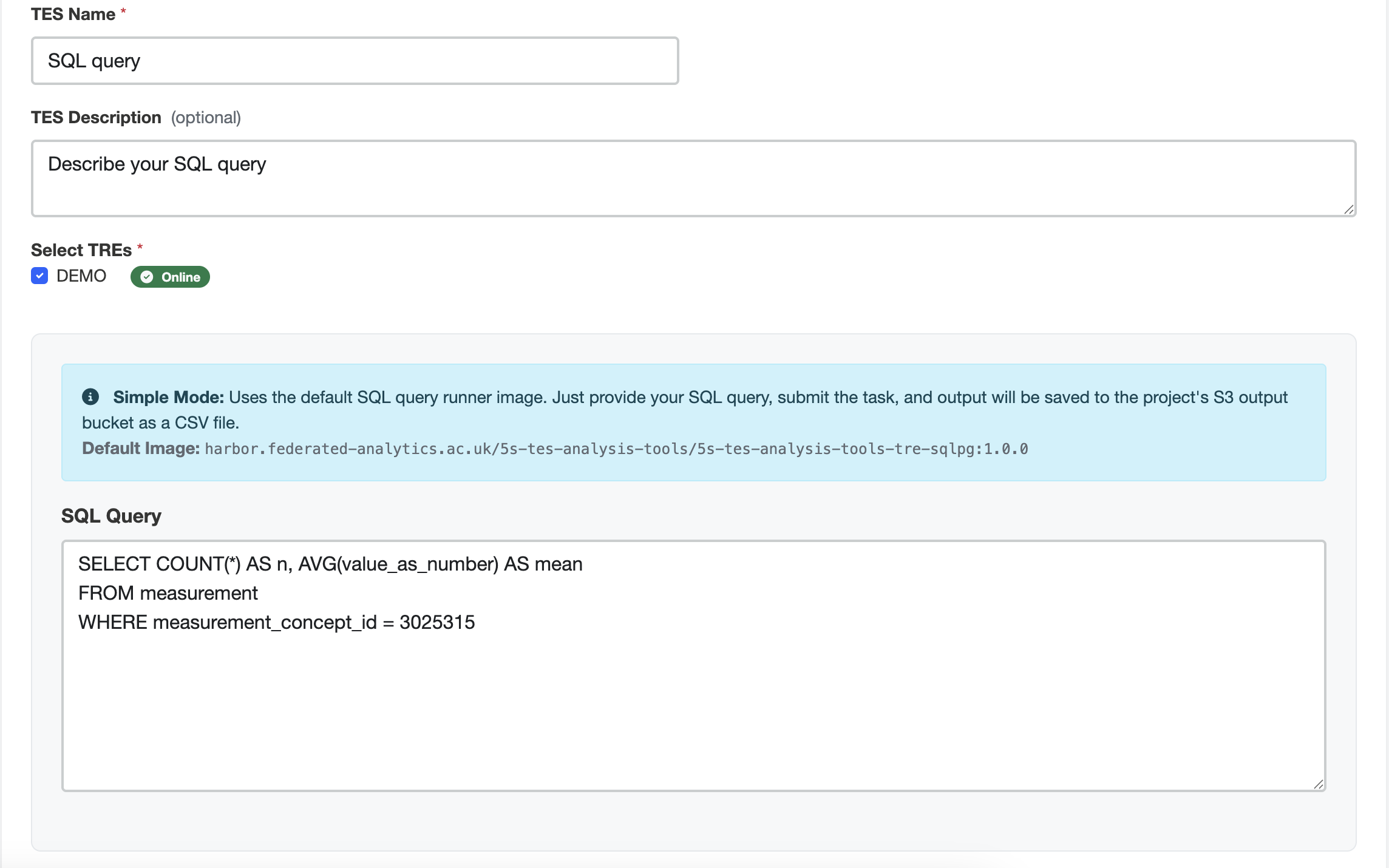
The Simple SQL Query TES Wizard mode creates a TES task that executes a Postgres SQL Runner container image. To submit a SQL query TES Task you need to set:
- Name
- Description (optional)
- TREs to submit to
- A SQL Query
An example for a SQL query to get the number of records and the total value of the measurement values for the concept “Airway resistance —during inspiration” in the TRE OMOP CDM DB is:
WITH user_query AS (
SELECT value_as_number FROM public.measurement WHERE
  measurement_concept_id = 21490742
  AND value_as_number IS NOT NULL
  )
SELECT COUNT(*) AS n, SUM(value_as_number) AS total FROM user_query;
Example Submission:
Custom Image
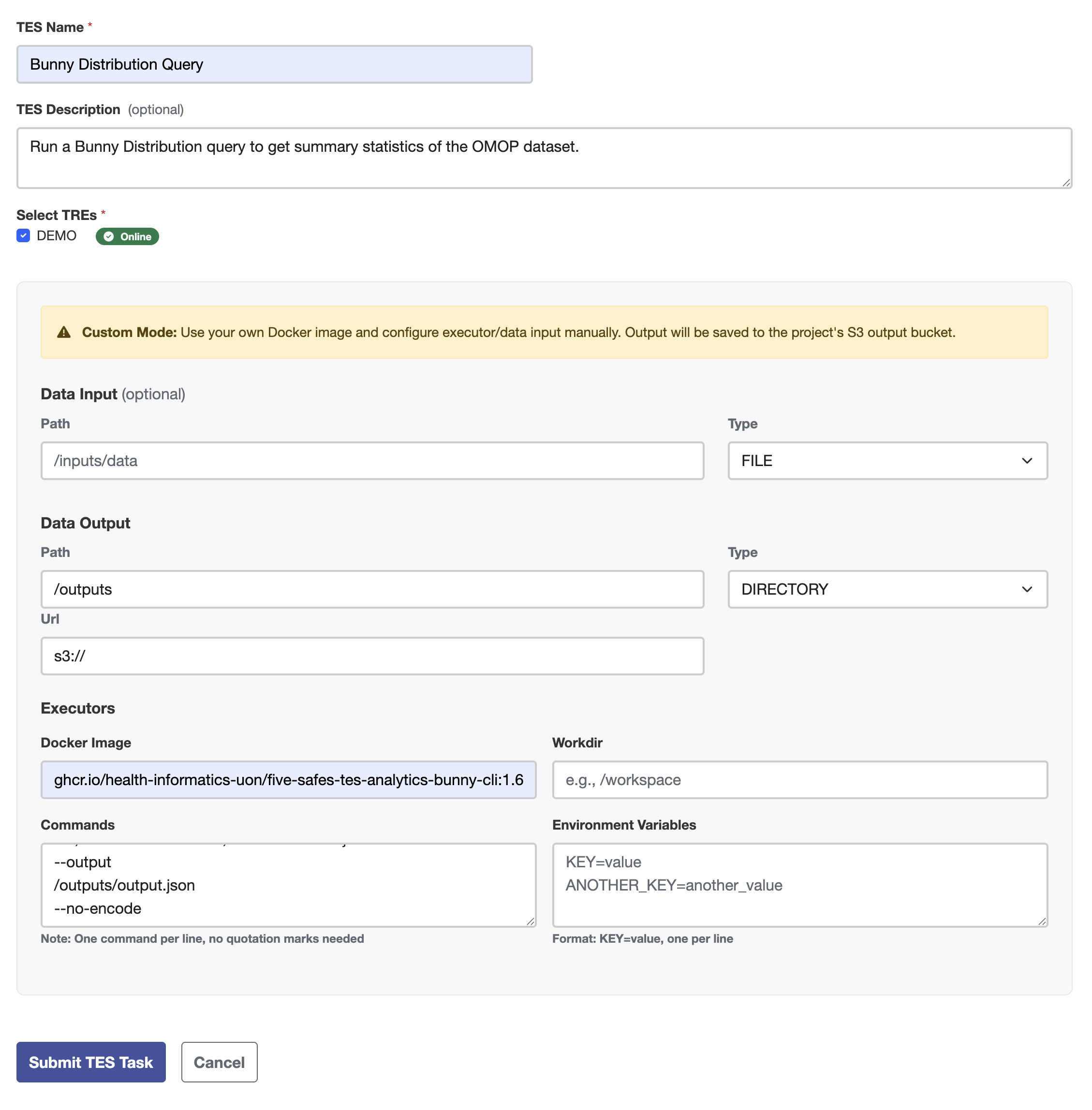
The Custom Image TES Wizard guides you through the construction of a Custom TES Task. Details on what a TES Task looks like can be found in the GA4GH TES API documentation. Enter the following information about the TES Task:
- Name
- Description (optional)
- TREs to submit to
- Data Input (optional)
- Path
- Type
- Data Output:
- Path
- Url
- Type
- Executors:
- Image: Name of the container image.
- Commands: A sequence of program arguments to execute.
- Working Directory: The working directory that the command will be executed in. If not defined, the system will default to the directory set by the container image.
- Environment Variables: Enviromental variables to set within the container.
Example Submission:
Raw JSON
The Raw JSON Tes Wizard mode allows you to submit a TES message as a JSON payload.
Example Submission:
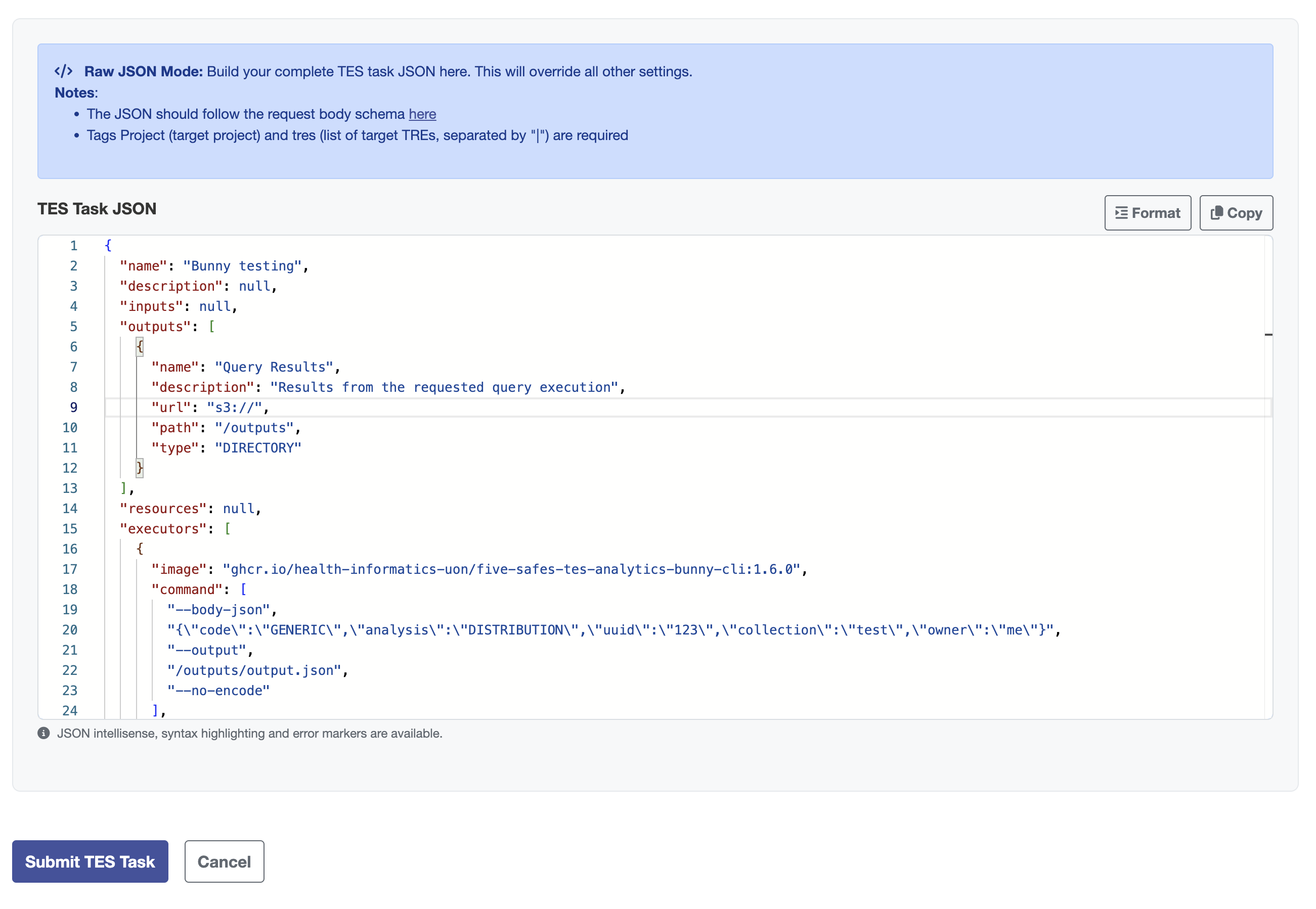
Specify the Project name and TRE you want to submit to in the “tags”. To submit to more than one TRE separate the TRE Names using |
"tags": {
    "project": "Testing",
    "tres": "DEMO 01" // or "DEMO TRE 01|DEMO TRE 02"
}