- Target Audience
- Federation Operator
Registering a TRE
This guide describes how to register a TRE to the Submission Layer.
Prerequisites
- A Submission Layer Administrator user - Submission Layer’s Keycloak Admin has to create a Submission Layer Admin user with
dare-control-adminrole using this guide - A TRE admin user - Submission Layer’s Keycloak Admin has to create a new user in Keycloak with the
dare-tre-adminrole using this guide. The credentials of this user will be used by TRE Operator to connect their TRE to the Submission Layer. - Name of the TRE - This is the name of the TRE that will be registered to the Submission Layer, and should be given by the TRE administrator.
- Access to the Submission Layer as a Submission Layer administrator user
Steps
Login to the Submission Layer
Login to the Submission Layer as Submission Layer Administrator.
Open the Create New TRE page
Select the TREs tab at the top of the home page. This will display the list of existing TREs.
Click the blue + Create New TRE button at the top-right of the TREs page. This will open the Create TRE page.

Fill in the TRE details
- Name of the TRE (mandatory)
- Username of the TRE administrator created in Keycloak with the
dare-tre-adminrole for the TRE with the name above (mandatory)
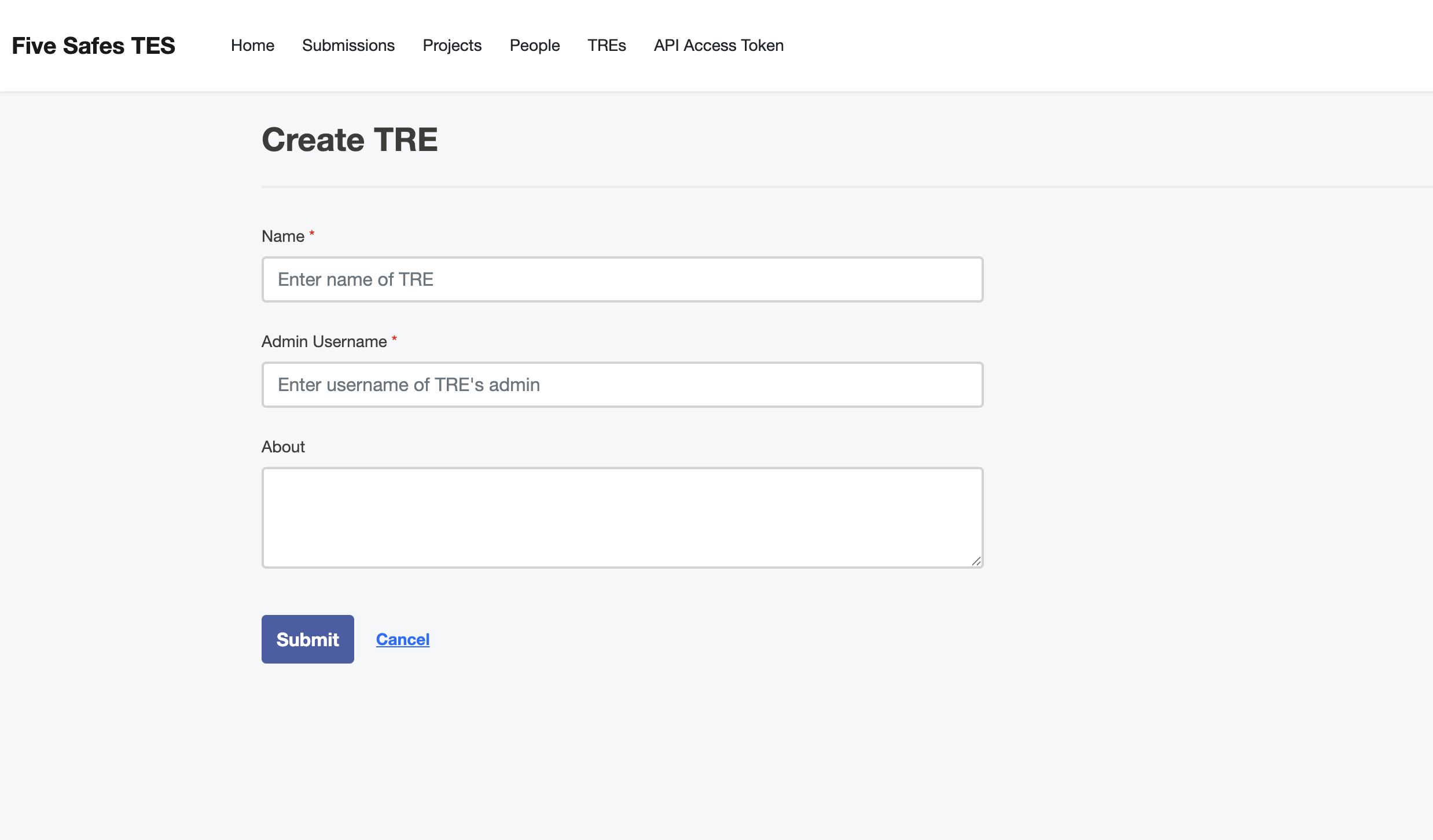
Submit the form
Once all details have been added click the blue Submit button. This will return you to the TREs page, where the new TRE will be displayed.
During creation, the Submission Layer automatically:
- Creates a dedicated Keycloak client for the TRE.
- Enables a service account for the client.
- Assigns the
dare-tre-adminrole to the service account. - Stores the generated credentials securely in Vault.
What’s next?
Last updated on